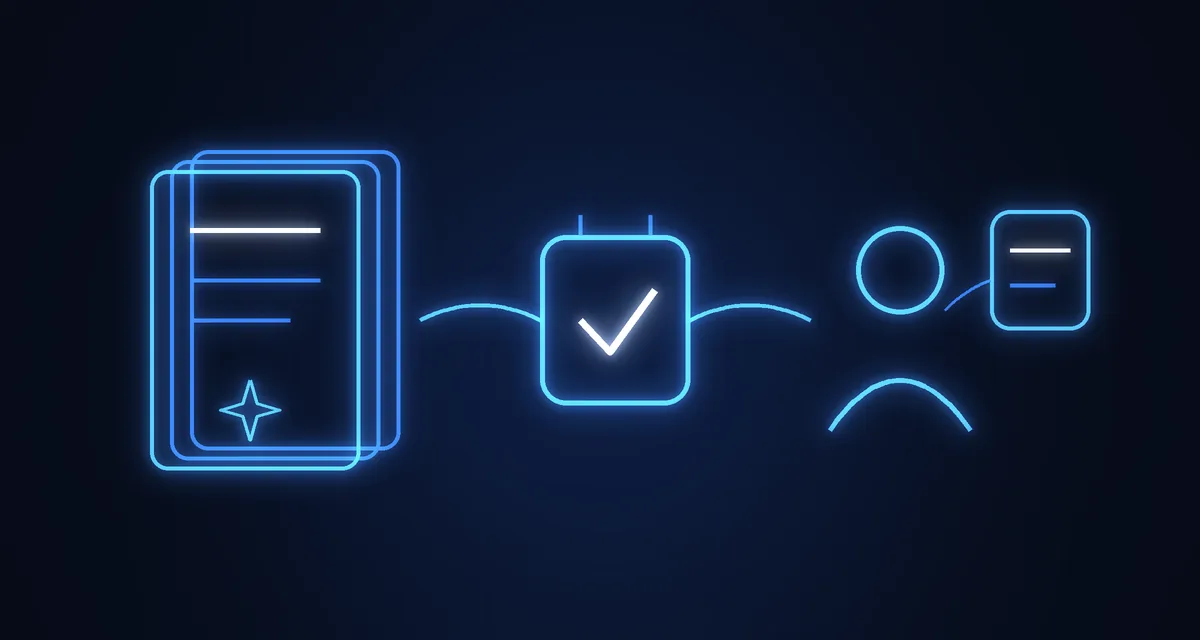
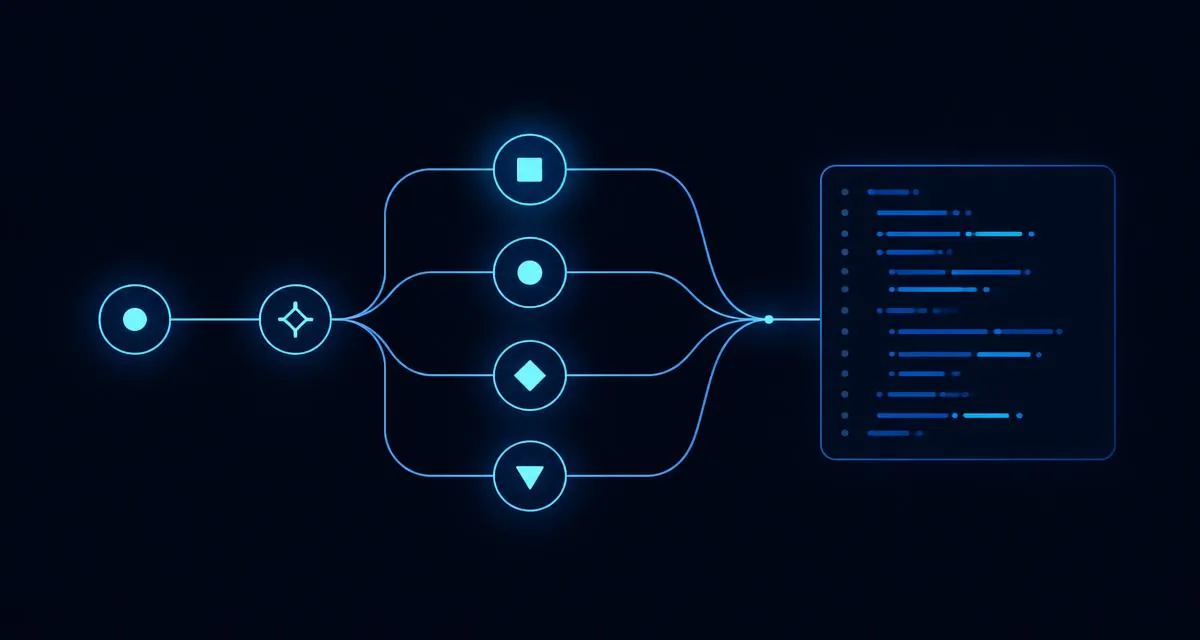
Automating Word Documents in an Offline Desktop App: Python, docxtpl and Offline Speech
How an offline Windows app fills an office's own Word formats from short typed or spoken input: docxtpl, formatters, Vosk speech, encrypted backup and licensing.
Usama Munawar5 min read
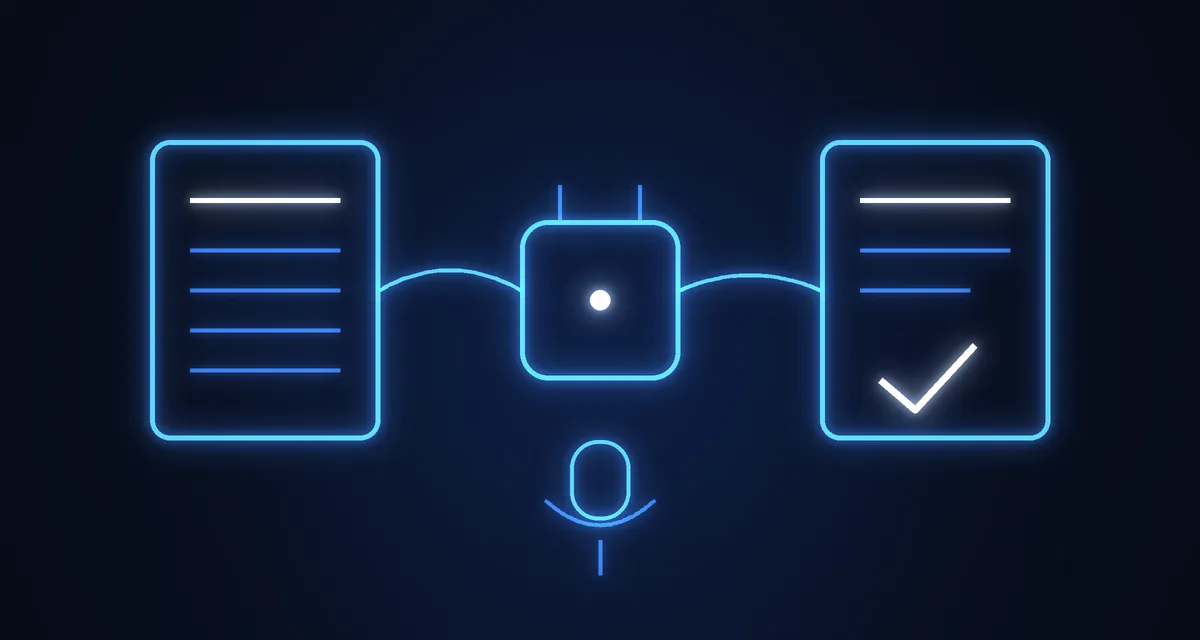
The problem: the same document, a hundred times
A lot of office work is one document written over and over. A findings letter, a decision, a notice: the layout is fixed, most of the wording is fixed, and only a handful of details change, such as names, dates, amounts and a case number. People retype it, copy an old file and edit it, and every copy is a chance to leave the wrong name or amount in the text.
I built Complaint Documents, an offline Windows desktop app, for exactly this situation in regional offices that write findings and decisions every day. This article explains how the pieces fit together, because the same design works for any office that produces documents from templates: legal, HR, insurance, schools, clinics and government.
You can see the project page here: Complaint Documents.
Principle 1: keep the original document, change only the words
The most important requirement was that the output must look exactly like the office's own document: same fonts, justified paragraphs, spacing, page size and margins. Generating a new document from scratch would never match. Instead, the app fills the office's own Word file.
In Python, docxtpl does this. You open the real .docx, put template tags where the changing words are ({{ case_no }}, {{ amount }}), and render:
from docxtpl import DocxTemplate

doc = DocxTemplate("templates/finding.docx")
doc.render({
    "case_no": "WMS-CCI/217/2026",
    "amount": "Rs.205,293/-",
})
doc.save("output/CCI-217-2026.docx")
Everything that is not a tag stays untouched, because it is the original document. python-docx covers the extra edits the template engine cannot do, such as page headers that carry the case number on page two onwards.
Principle 2: let people type short, print long
Staff should not have to type WMS-CCI/217/2026 or Rs.205,293/- correctly every time. The app takes a short form and produces the office's form:
| You type | The document shows |
|---|---|
CCI-217-26 | WMS-CCI/217/2026 |
10-09-2026 | 10.09.2026 |
205293 | Rs.205,293/- |
From 02/2026, to 07/2026 | 02/2026 to 07/2026 (06 months) |
Each box type has a small formatter. A simplified version of the case number and amount formatters looks like this:
def format_case_no(raw: str) -> str:
    kind, number, year = raw.strip().upper().split("-")
    return f"WMS-{kind}/{number}/20{year}"

def format_amount(raw: str) -> str:
    return f"Rs.{int(raw.replace(',', '')):,}/-"
The real versions handle many more cases, but the idea is the same: validate on entry, format once, and use the formatted value everywhere in the document. Before the file is created, the app also flags empty boxes and likely typing mistakes, which catches errors when they are cheap to fix.
Sentences adapt to the details as well. The complainant's gender switches he and his to she and her only where it refers to the complainant, and one hearing or several changes whether the text says "a hearing was held" or "hearings were held". That is conditional text inside the template, not code scattered through the app.
Principle 3: make the second case faster than the first
Good document automation remembers things:
- Typing a case number that is already saved fills in its details.
- A reference number seen in an earlier case shows a note, fills in the consumer's details and offers the follow-on formats in one click.
- Values typed while generating are saved to the case, so they are never typed twice.
- A batch screen loads cases from an Excel sheet with
openpyxl, shows them in a table, lets you preview one row and then generates a document for every row. - Every generated file is listed by date, with preview, open in Word, print, read aloud and ZIP export.
None of this is clever. It is the difference between a tool that saves ten seconds and one that changes how the office works.
Principle 4: work offline, including the voice input
Many offices cannot count on a steady internet connection, and sending case details to a cloud service is not something they want. So the app runs entirely on the PC, including speech input.
Speech recognition uses Vosk, an offline engine. Audio comes from the microphone with sounddevice, and the recognizer turns it into text that fills the focused box:
import json
from vosk import Model, KaldiRecognizer

model = Model("models/en")
recognizer = KaldiRecognizer(model, 16000)

# feed microphone chunks as they arrive
if recognizer.AcceptWaveform(chunk):
    text = json.loads(recognizer.Result())["text"]
The recognizer's text then goes through the same box formatters as typing. Saying "checking date fifteenth December" ends up as a correctly formatted date, because voice is just another way to fill the same field.
Principle 5: protect the data and the product
A desktop app that holds case details needs a plan for the PC dying and for the software being copied:
- Encrypted backup. Case details are backed up automatically in encrypted form (using Python's
cryptographylibrary) and can be restored on a new PC. - Licensing. Each PC needs a licence key, activated online once; after that the app works offline. The download itself sits behind the licence check on a small Next.js site.
- Packaging. PyInstaller builds a Windows installer, so office PCs get a single Setup file and no Python install. Updates and new formats arrive automatically.
Why a desktop app and not a web app?
A web app would have been easier to update, but it was the wrong fit here:
- The documents have to open in Microsoft Word on the office PC, and
pywin32can drive Word directly for previews and printing. - Case details stay on the machine unless they are backed up.
- It must keep working when the network does not.
If your office has reliable internet and no data-residency concerns, the same document engine works as a web app too. The principles above do not change; only the packaging does.
What this looks like in practice
The user picks the finding by typing part of its name (small spelling mistakes are fine), fills in the boxes in the same order as the document, and presses Create File. The Word file is saved, named by case number and opened. The form clears for the next case.
The stack, in one line: Python with PySide6 for the interface, docxtpl and python-docx for the Word files, openpyxl for Excel, pywin32 for Word, Vosk for offline speech, cryptography for backups and PyInstaller for the installer.
Could this work for your office?
If your team keeps retyping the same documents, this pattern can save hours a week and remove a whole class of mistakes. I build document automation as desktop tools, web apps or workflows depending on the case. See automation with n8n, AI integration and MVP development, or email devusamaworks@gmail.com or WhatsApp +92 303 8004684 for a free 30-minute call. If you are weighing a workflow tool against custom software, n8n vs custom code explains how I decide.
A question about this article?Ask me on WhatsApp